Link Pannenhuis email to ur gmail inbox
Step 1: Access Gmail Settings
Log in to your Gmail account.
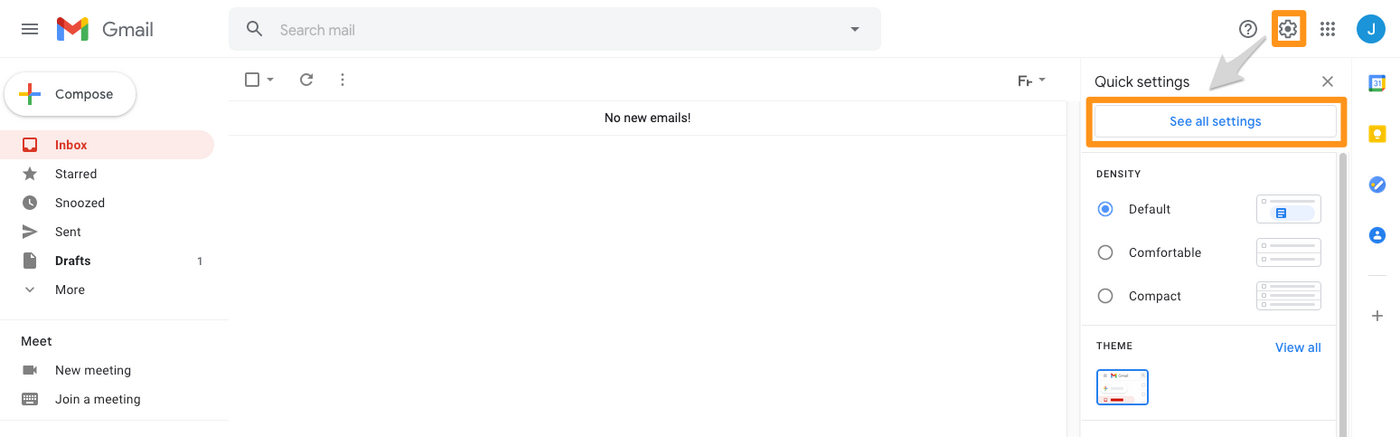
Click on the gear icon in the top-right corner and select "See all settings".
Step 2: Navigate to Accounts and Import
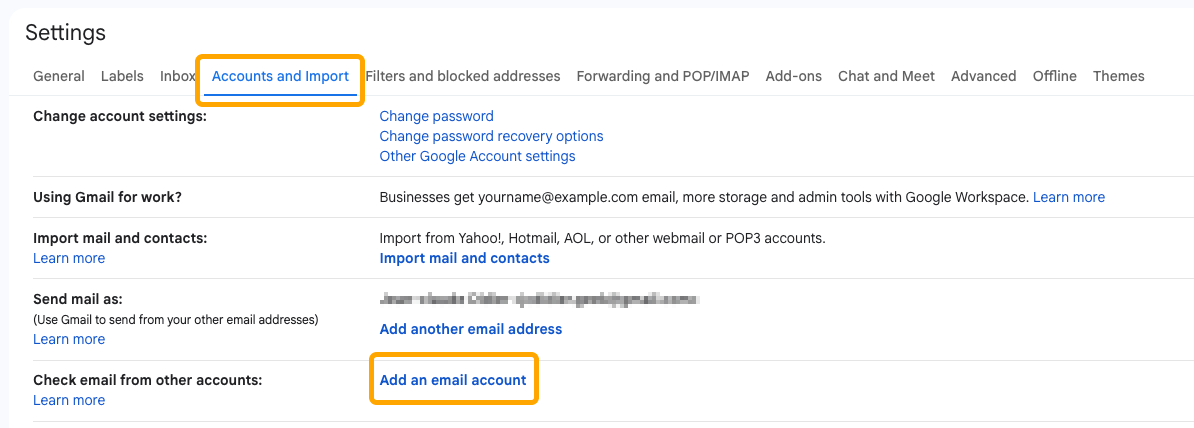
Within the settings menu, click on the "Accounts and Import" tab.
In the "Check mail from other accounts" section, click on "Add a mail account".
Step 3: Add a Mail Account
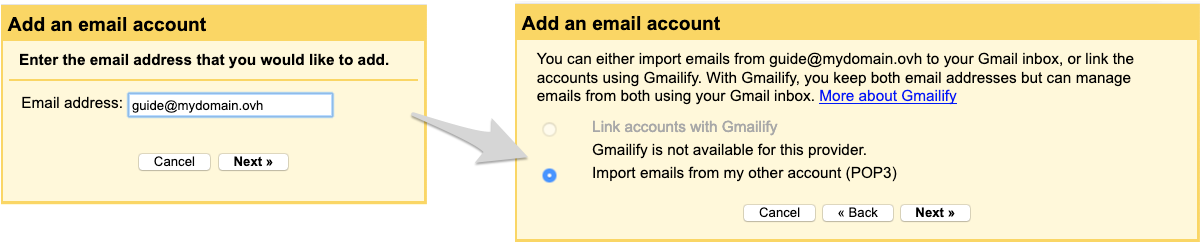
A pop-up window will appear. Enter pannenhuis@de3hoek.be email address and click Next.
Select Import emails from my other account (POP3) and click Next.
Step 4: Configure Mail Settings
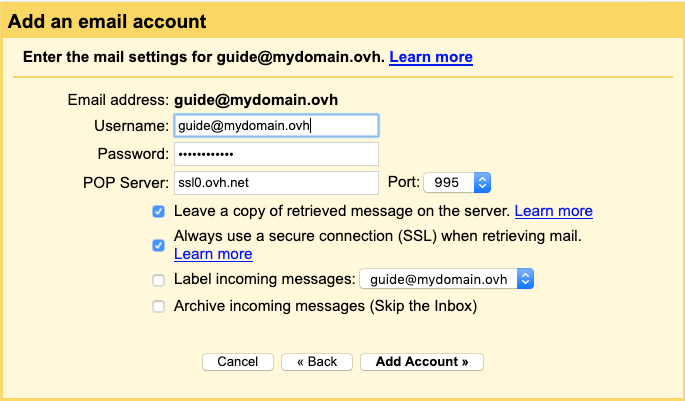
Enter pannenhuis@de3hoek.be as the username.
Input your email password will send this with WhatsApp.
For the POP server, enter ssl0.ovh.net and set the port to 995.
Check the box Leave a copy of retrieved message on the server if you ever delete a mail you can recover it with the webmail client.
Check the box for Always use a secure connection (SSL) when retrieving mail.
After entering the necessary information, click Add Account.
Step 5: Finalize and Add Account
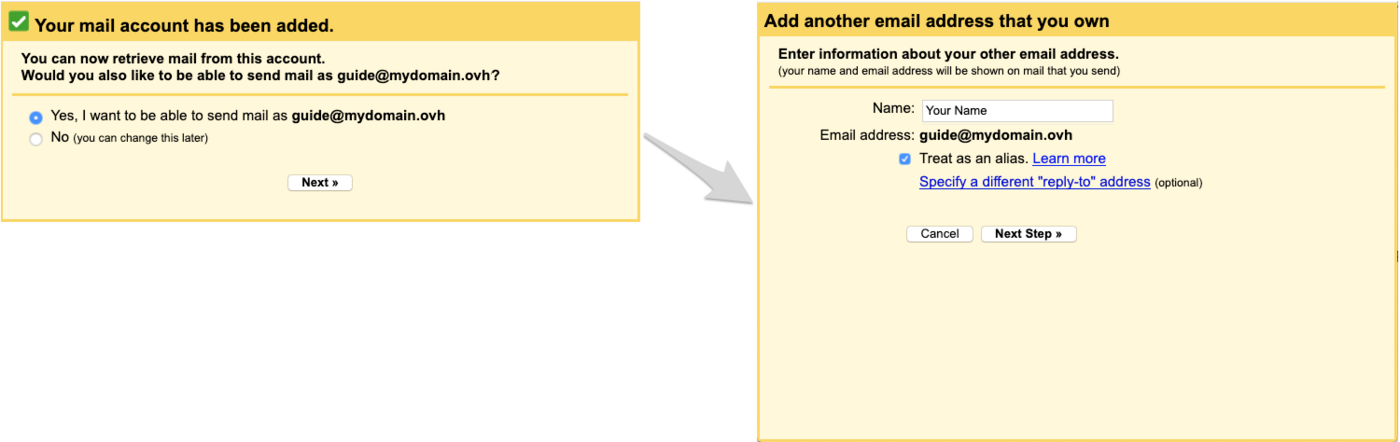
You'll be prompted to decide if you want to send emails as this address. Choose Yes and click Next.
Enter your name as you want it to appear in outgoing emails and click Next Step. (This can be ur own name)
Step 6: Configure Outgoing Mail (SMTP)
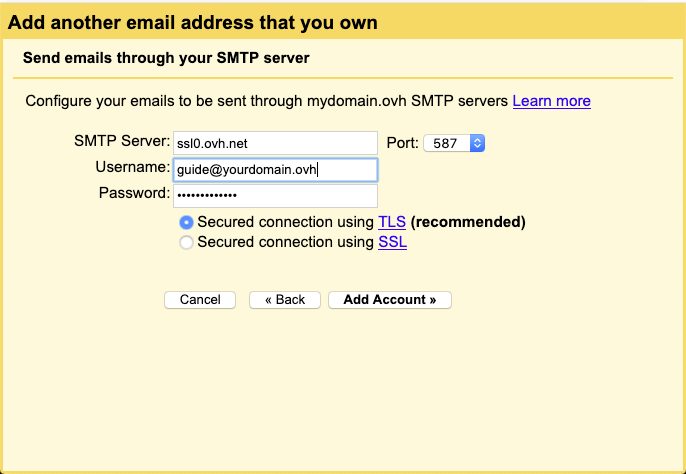
For the SMTP server, input ssl0.ovh.net and set the port to 587.
Rnter pannenhuis@de3hoek.be and the WhatsApp Password this is the same as last time.
Ensure Secured connection using SSL is selected and click Add Account.
Step 7: Verification Mail
Gmail will send a verification email to the webmail client. Click on the link and login with pannenhuis@de3hoek.be and the WhatsApp Password.
In this email is a verification link click on it or enter the provided code in the pop-up window to confirm.
Step 8: Completed
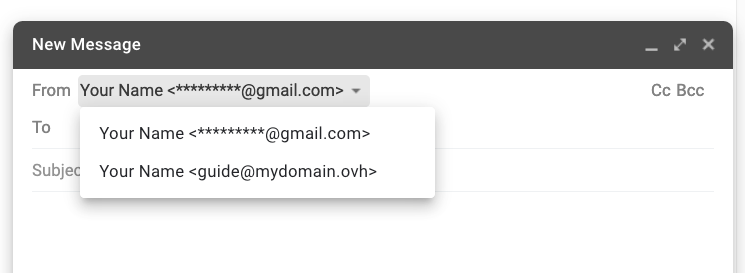
Everything should now be in order and emails from Pannenhuis would start comming in ur mailbox
If you now make a new email you also have the option to change the email that you would like to send the email from